
Get Started
Follow this exact setup flow to create a website, install the tracker, and confirm the first live analytics data.
Before You Start
- Make sure you can access your SaaSAnalytics dashboard and the codebase or CMS where your site's <head> tag lives.
- This walkthrough uses an example domain, but the same steps work for your own site.
- The tracker script shown in your dashboard already includes the correct website ID. Copy it exactly as provided.
Create The Website Record
Open website management, click Add Website, and fill in the domain and timezone for the site you want to track.
Step 1
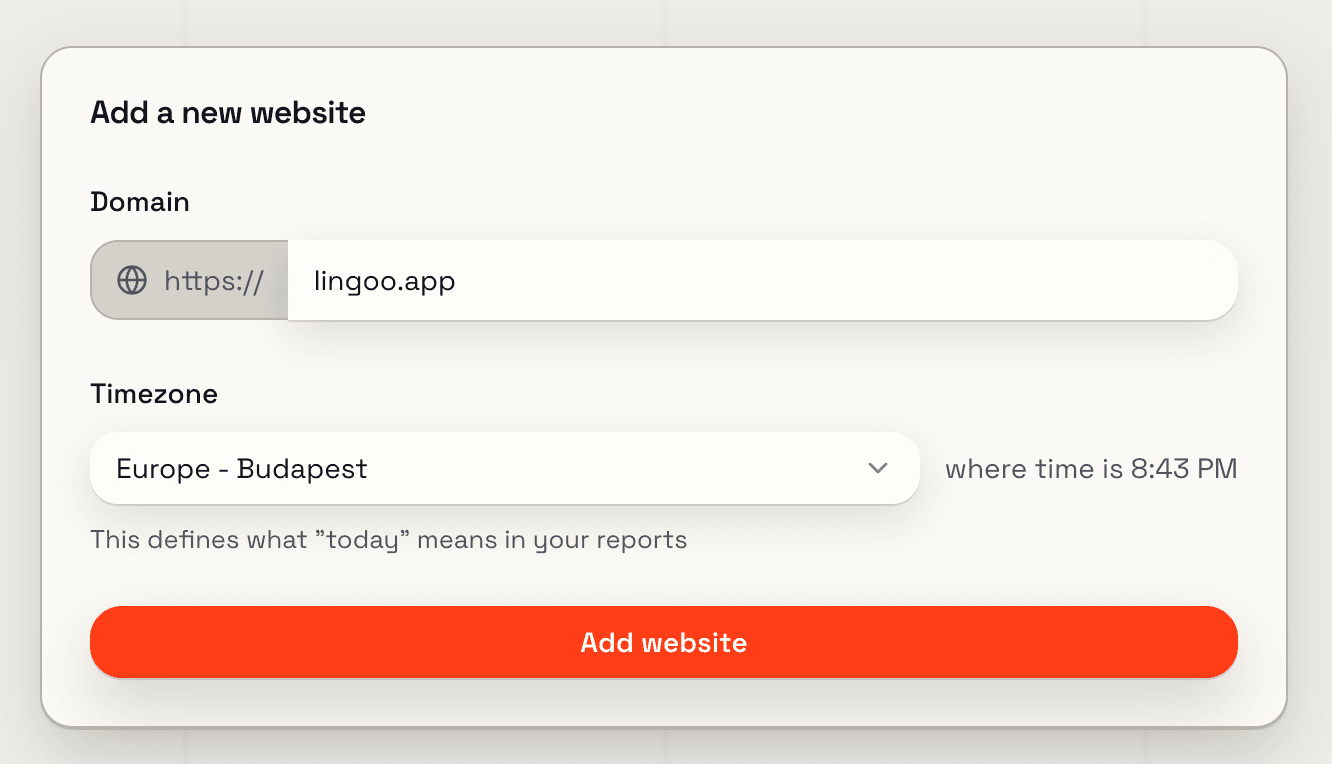
Do This
- →Open the dashboard and go to the Websites screen.
- →Click Add Website to open the setup wizard.
- →Enter your production domain, for example yoursite.com.
- →Choose the reporting timezone that should define “today” for this website.
- →Click Add website to generate the tracking snippet.
Expected Result
The wizard advances to the install step and shows the script for the new website.
Copy The Tracking Script
The install panel contains the exact snippet for your website, including the generated website ID. Paste it into the global head of your site.
Step 2
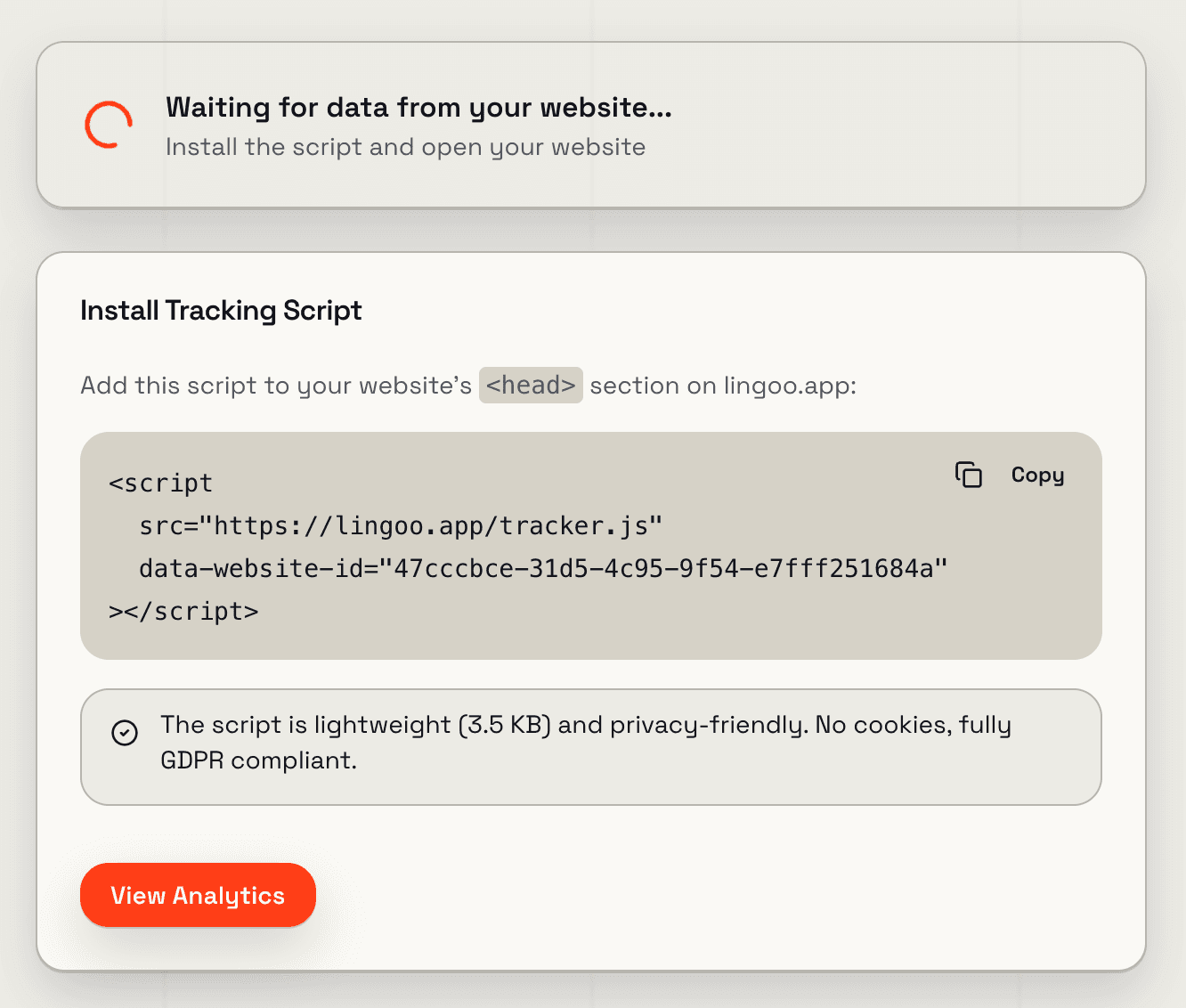
Do This
- →Click Copy in the install panel.
- →Paste the script into your site’s global HTML head.
- →Do not change the data-website-id value.
- →After publishing the change, load your live site at least once.
Expected Result
Your website source now includes the SaaSAnalytics tracker snippet exactly as shown in the dashboard.
Open The Live Dashboard
Return to the dashboard and open the new website to confirm that the first pageview and visitor have been recorded.
Step 3
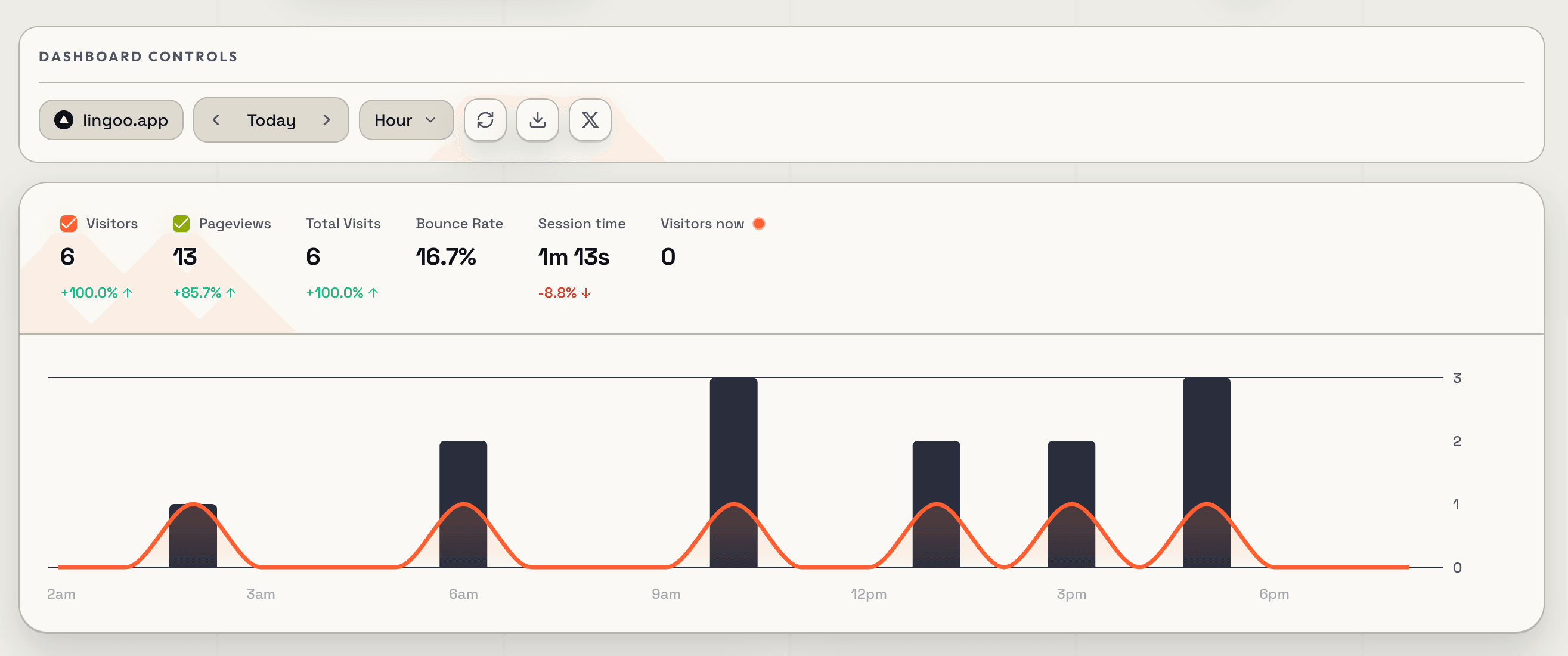
Do This
- →Click the website card to open analytics.
- →If the dashboard still looks empty, refresh the Websites view and open the site again.
- →Verify the top KPI row shows the new visit and pageview.
- →Use the date and interval controls if you need to narrow the first-hit view.
Expected Result
You can see live analytics data for the site, including at least one visitor and one pageview.
Troubleshooting
If the first visit does not appear, check these common setup issues before changing anything else.
No data yet
Load the live site after the script is installed. If the wizard still waits, refresh the dashboard or reopen the website from website management.
Wrong website ID
The data-website-id must match the exact value generated for the site. If you regenerate the site, copy the latest script again.
Script not in the head
Place the tracker in the global <head> of your site template or app shell so every page can load it.
Verify the tracking request
Open your browser network tab and confirm a successful request to /api/v1/track when the page loads.